Good email automation workflows do more than send messages on a timer. They connect a clear trigger, the right audience, useful timing, and a stop condition so each message has a reason to exist.
For teams building email marketing automation, the goal is not to automate everything. It is to automate repeatable customer communication while keeping permission, relevance, and sender quality in view.
This guide covers seven practical workflow patterns, the controls that keep them useful, and a checklist for planning, testing, measuring, and improving automation in SendWise.
At a glance
- Start every workflow with a specific trigger and eligible audience.
- Give each automation one primary communication goal.
- Define exit, suppression, and unsubscribe rules before launch.
- Test timing, sender configuration, links, and audience logic on a small group first.
1. What is an email automation workflow?
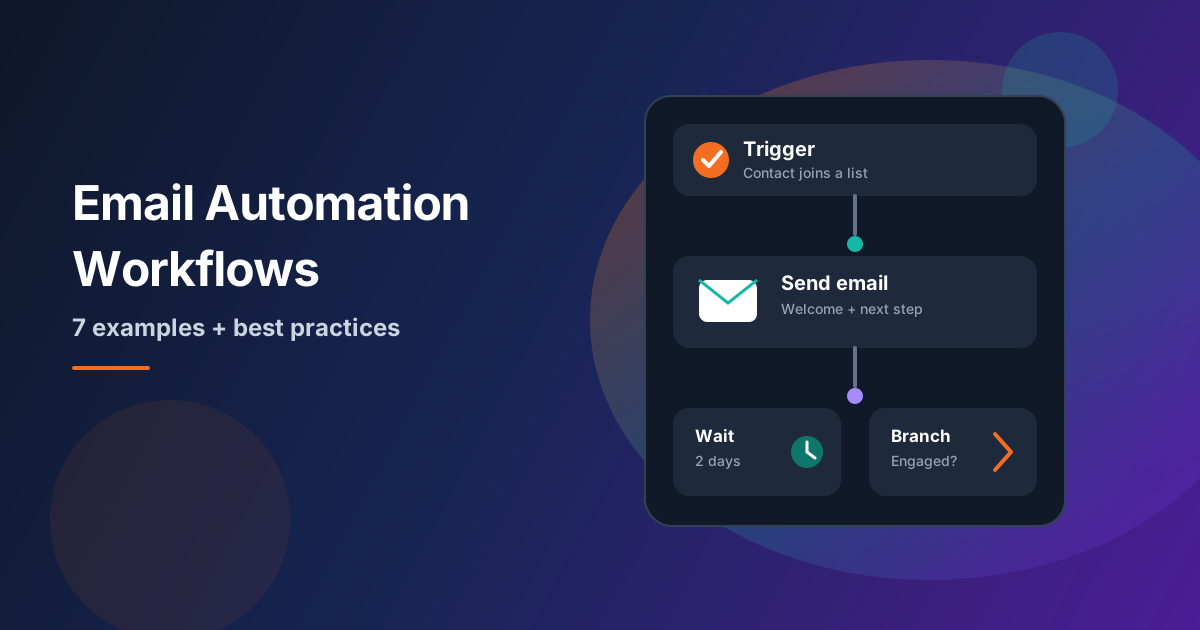
An automation workflow is a sequence of actions that starts when a defined event happens. That event might be a contact joining a list, completing a form, becoming inactive, or reaching a stage in the customer journey. The workflow then decides what happens next and when it should stop.
The strongest automated email workflows are easy to explain in one sentence: “When this happens, send this useful message to this audience, then stop when the goal or exit condition is reached.” That clarity keeps the automation focused and easier to test.
2. Seven practical email automation workflow examples
The following email workflow examples cover common permission-based lifecycle moments. Each one can be simple at first and expanded only when the extra logic creates a better customer experience.
1. Welcome and first-value workflow
Use this workflow after someone explicitly joins your list or signs up for a service. The first message should confirm what they signed up for and point them toward one useful next step.
- Trigger: new opt-in, registration, or approved list subscription.
- Goal: deliver the promised value and set expectations.
- Stop condition: the welcome sequence finishes or the contact exits the eligible audience.
2. Lead follow-up workflow
A lead follow-up workflow keeps a qualified opt-in from going cold after a meaningful action, such as requesting information or showing interest in a product area. Keep the sequence short, useful, and easy to exit.
- Trigger: a permissioned lead action.
- Goal: answer the next likely question and create a clear path forward.
- Stop condition: reply, conversion, disqualification, unsubscribe, or sequence completion.
3. Customer onboarding workflow
Onboarding automation can break a complex first week into smaller steps: account setup, essential configuration, and the first successful outcome. Avoid sending every tip at once; sequence information around what the customer needs next.
- Trigger: account creation or onboarding start.
- Goal: help the customer reach a useful first outcome.
- Stop condition: onboarding milestone reached or customer exits the journey.
4. Re-engagement workflow
Re-engagement should target contacts who previously opted in but have become inactive. Use a conservative cadence and give people a clear way to remain subscribed—or leave—rather than repeatedly messaging an audience that is no longer interested.
- Trigger: a defined period of inactivity.
- Goal: confirm continued interest or gracefully reduce future sending.
- Stop condition: meaningful engagement, unsubscribe, suppression, or sequence completion.
5. Post-campaign follow-up workflow
After a campaign, a small follow-up sequence can help people who took a meaningful action get the next piece of information without sending the same message to everyone again.
- Trigger: a relevant campaign action or approved follow-up segment.
- Goal: continue the conversation with a context-aware next step.
- Stop condition: goal completion, audience exit, or follow-up window ends.
6. Sender or account readiness workflow
Before scaling a sequence, teams can use an operational checklist around sender readiness: confirm the connected account, review expected volume, test links, and start with a controlled audience.
- Trigger: a new sender, new workflow, or material change in sending pattern.
- Goal: verify the sender and workflow are ready before broader activation.
- Stop condition: readiness checks pass or the workflow is held for correction.
7. List hygiene and verification workflow
Automation works best when the underlying audience is maintained. Verification and suppression checks can be part of the preparation process before important sends or after list changes.
- Trigger: list import, campaign preparation, or scheduled hygiene review.
- Goal: reduce avoidable sending to poor-quality or ineligible addresses.
- Stop condition: the list is reviewed and the eligible audience is ready.
3. Email automation best practices that keep workflows useful
Strong email automation best practices are mostly about control. A workflow should know who can enter, why they are receiving the message, when they should leave, and what happens when they unsubscribe or become ineligible.
- Use one primary objective per workflow.
- Keep entry rules explicit and auditable.
- Add suppression, unsubscribe, and exit logic before activation.
- Use delays intentionally instead of adding messages simply to make the sequence longer.
- Test the workflow with a small internal or controlled audience before scaling it.
Deliverability belongs inside the workflow design
Permission-based email automation still depends on list quality, sender configuration, and sensible sending patterns. Review the email deliverability guide and email list verification guide before scaling a high-volume automation.
4. How to measure an automation workflow
Do not judge a workflow by sends alone. Match measurement to the purpose of the automation, then use delivery and engagement signals to understand whether people are receiving and using the sequence as intended.
- Delivery: was the message accepted and sent as expected?
- Engagement: are recipients opening, clicking, or replying when that action matters?
- Journey outcome: did the workflow help the contact reach the intended next step?
- Audience quality: are suppression, unsubscribe, and verification rules working as expected?
5. Building email automation workflows in SendWise
SendWise brings permission-based campaigns, contact and list management, sender integrations, automated follow-up workflows, verification, and analytics into one place. Teams can connect Gmail, Microsoft 365, or SMTP-based sender accounts and keep the sending workflow tied to an opted-in audience.
Explore SendWise automation, review the available sender integrations, and see the broader email marketing features when you are ready to move from a workflow plan into implementation.
SendWise Automation Takeaway
Effective automation is easier to manage when the workflow is built around permission, a clear audience, one primary objective, explicit exit rules, and measurable outcomes. SendWise brings campaigns, contacts, sender integrations, verification, automation, and analytics together so teams can keep those controls in the same operating workflow.
Frequently Asked Questions
What should an email automation workflow include?
At minimum, define the trigger, eligible audience, message objective, timing, sender, and stop condition. Add suppression and unsubscribe rules before launch so the workflow knows who should not continue receiving messages.
What are the best email automation workflows for small businesses?
Welcome, onboarding, lead follow-up, re-engagement, and post-campaign follow-up are usually the most practical starting points because they map to clear customer moments and can begin with simple logic.
How many emails should an automated workflow contain?
There is no useful universal number. Use the minimum number of messages needed to achieve the workflow goal, then stop when the goal, exit condition, unsubscribe, or eligibility rule is met.
How do automated email workflows affect deliverability?
Automation can magnify both good and poor sending practices. List quality, sender setup, pacing, suppression rules, and engagement still matter, so test a controlled audience before scaling.
Can SendWise be used for permission-based email automation?
Yes. SendWise supports permission-based campaigns, contact and list management, sender integrations, automated follow-up workflows, verification, and analytics for opted-in customer communication.
Related SendWise Guides
- Email Deliverability Guide
- Email List Verification Guide
- Email Warmup Guide
- SendWise Email Campaign Checklist
6. Email automation workflow checklist
- Define the trigger and eligible audience.
- Choose one primary objective.
- Map the minimum useful sequence.
- Set timing and frequency limits.
- Add exit, suppression, and unsubscribe rules.
- Confirm sender configuration and list quality.
- Test links, audience logic, and workflow timing.
- Launch to a controlled audience first.
- Measure against the workflow goal, not sends alone.
- Review and simplify the sequence when steps stop adding value.
The best email automation workflows are not the longest or most complicated. They send the right message to the right permission-based audience for a clear reason—and know when to stop.